
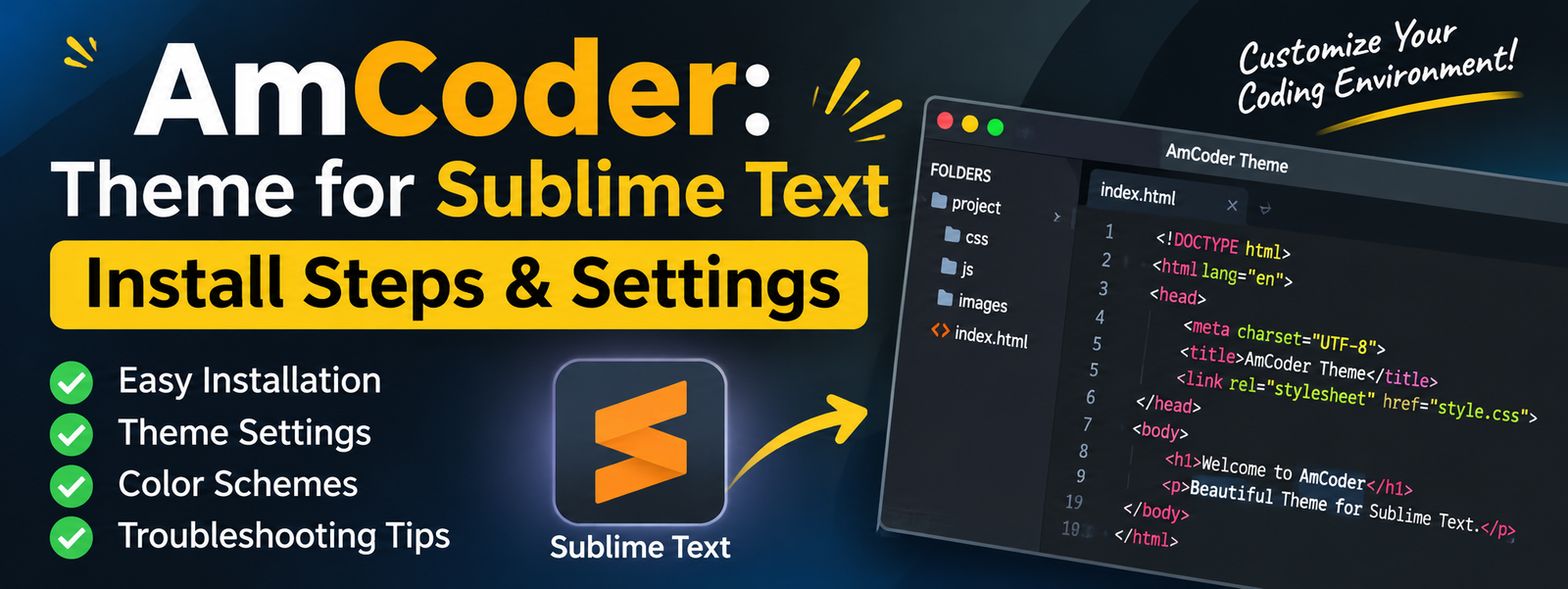
The AmCoder theme combines a user-interface theme with matching color schemes. This gives users an opportunity to customize both the editor’s overall appearance and the colors used to display code. Its design is based on Spacegray and is optimized for Monokai, making it an interesting option for programmers who appreciate dark editor layouts.
A comfortable coding environment can make a real difference during long programming sessions. The appearance of an editor affects how easily developers read code, recognize syntax, and navigate between files. AmCoder is a minimalist theme package for Sublime Text that offers a clean interface inspired by the familiar Monokai color style. It is designed for developers who prefer a simple workspace without unnecessary visual distractions.
In this guide, you will learn how to install AmCoder through Package Control, set it up manually, activate its available versions, and adjust important settings. You will also find troubleshooting advice and practical recommendations for getting the best experience from this Sublime Text theme.
What Is AmCoder for Sublime Text?
AmCoder is a hyperminimal user-interface theme created by auiWorks for Sublime Text. Its original package documentation describes it as a theme for Sublime Text 2 and 3, with a design inspired by Monokai and inherited from Spacegray.
Unlike a basic color scheme that changes only the appearance of code, AmCoder also provides interface styling. This means it can change the editor’s overall visual presentation while its accompanying color schemes control syntax highlighting.
The package includes different variations, including default and Classic versions. It also provides Bright color-scheme alternatives for users who prefer a different balance of colors.
The package is listed in Package Control under the name Theme – amCoder. Its published version is 2.3.1, dated October 21, 2015. Because this is an older release, users of newer Sublime Text versions should test the package before making it their permanent editor setup.
Main Features of the AmCoder Theme
AmCoder focuses on simplicity, visual consistency, and a comfortable coding environment. Its main characteristics make it worth considering for developers who prefer a minimal interface.
1. Minimalist User Interface
The theme follows a clean visual approach. Instead of filling the editor with excessive decorative elements, it aims to keep attention on the code and workspace.
A simpler interface can be especially useful when working with several files or spending extended periods inside an editor.
2. Monokai-Inspired Appearance
One of the defining characteristics of AmCoder is its connection with Monokai. Monokai is a recognizable syntax color style used by many developers.
The AmCoder package includes modified Monokai-based color schemes intended to complement its interface design. This creates a more consistent appearance between the editor’s controls and the code area.
3. Default and Classic Versions
AmCoder provides two main interface choices:
- Default: The standard AmCoder appearance.
- Classic: An alternative version for users who prefer its classic styling.
These options allow developers to choose the appearance that feels most comfortable.
4. Bright Color-Scheme Options
The package also includes Bright versions of its color schemes. These provide additional visual choices without requiring users to create a completely new color scheme themselves.
5. Package Control Installation
AmCoder can be installed through Sublime Text’s Package Control system. This provides a straightforward installation method without manually moving theme files into the editor’s package directory.
How to Install AmCoder Through Package Control
Using Package Control is the recommended installation method described in the package instructions. Before starting, make sure Sublime Text is installed and working correctly.
Step 1: Open Sublime Text
Launch Sublime Text on your computer. Wait for the editor to finish loading before opening its command tools.
Step 2: Open the Command Palette
The Command Palette allows users to find and run different editor commands.
Use the following keyboard shortcut:
- Windows and Linux: Ctrl + Shift + P
- macOS: Command + Shift + P
You can also open it through the Tools menu.
Step 3: Select Install Package
After opening the Command Palette, type:
Package Control: Install Package
Select the matching command from the list. Sublime Text will display the available packages.
Step 4: Search for Theme – amCoder
Enter the exact package name:
Theme – amCoder
Select the package and press Enter to begin installation.
Make sure you choose the correct name because similarly named packages may appear in package searches.
Step 5: Wait for Installation
Allow Package Control to complete the process. Once installation finishes, the theme files should be available inside the Sublime Text Packages directory.
Installing the package does not necessarily activate the theme automatically. You must configure the appropriate theme and color-scheme settings separately.
How to Install AmCoder Manually
If Package Control is unavailable or the automatic installation does not work, the original package instructions also describe a manual installation method.
Step 1: Download the Package
Open the AmCoder package listing and follow its repository or source link to locate the available files.
Download the ZIP archive containing the theme.
Step 2: Extract the ZIP File
Find the downloaded archive and extract its contents. Rename the extracted folder to:
Theme – amCoder
Using the expected folder name helps Sublime Text locate the package files correctly.
Step 3: Open the Packages Directory
In Sublime Text, select:
Preferences → Browse Packages…
This opens the Packages directory used by the editor.
Step 4: Copy the Theme Folder
Copy the extracted Theme – amCoder folder into the Packages directory.
Check that the theme files are inside the folder rather than accidentally placed in an additional nested directory.
Step 5: Activate the Theme
After copying the files, open the User Settings file and enter the appropriate theme and color-scheme configuration.
Restart Sublime Text if the changes do not appear immediately.
AmCoder Theme Settings and Configuration
Correct configuration is an important part of installing AmCoder. The package includes different theme and color-scheme files, so users should select matching options.
Activate the Default AmCoder Theme
Open Sublime Text and navigate to:
Preferences → Settings
You can also use the User Settings option from the Preferences menu.
Add the following setting to your user preferences:
{
“theme”: “amCoder.sublime-theme”,
“color_scheme”: “Packages/Theme – amCoder/amCoder.tmTheme”
}
This configuration selects the default AmCoder interface and its matching Monokai-inspired color scheme.
Activate the Classic Version
If you prefer the Classic interface, use this configuration:
{
“theme”: “amCoder Classic.sublime-theme”,
“color_scheme”: “Packages/Theme – amCoder/amCoder Classic.tmTheme”
}
This selects the Classic theme and its corresponding color scheme.
Choose the Bright Color Scheme
AmCoder also includes Bright alternatives. You can select one by changing the color-scheme setting.
For the default Bright version:
{
“theme”: “amCoder.sublime-theme”,
“color_scheme”: “Packages/Theme – amCoder/amCoder (Bright).tmTheme”
}
For the Classic Bright version:
{
“theme”: “amCoder Classic.sublime-theme”,
“color_scheme”: “Packages/Theme – amCoder/amCoder Classic (Bright).tmTheme”
}
Use one matching configuration at a time. If you combine settings from different variations, the interface and syntax colors may not look as intended.
AmCoder Installation and Settings at a Glance
The following table summarizes the main installation and configuration choices.
| Setup Item | Recommended Action or Setting |
| Package name | Theme – amCoder |
| Package author | auiWorks |
| Published version | 2.3.1 |
| Installation method | Package Control or manual |
| Default UI theme | amCoder.sublime-theme |
| Classic UI theme | amCoder Classic.sublime-theme |
| Default color scheme | amCoder.tmTheme |
| Bright color scheme | amCoder (Bright).tmTheme |
| Original documented support | Sublime Text 2 and 3 |
The package information and configuration names are taken from the published package documentation. Compatibility with newer editor releases should be checked separately.
How to Customize Your AmCoder Experience
After installation, you can make a few practical adjustments to improve your coding environment.
Choose a Comfortable Color Scheme
The color scheme affects how programming languages appear in the editor. Try the standard and Bright variations to see which one makes code easier to read on your display.
A good color scheme should provide enough contrast between the background, keywords, strings, comments, and other syntax elements.
Adjust Font Size
Font size is another important setting for comfortable coding. You can change the editor font size in User Settings.
For example:
{
“font_size”: 12
}
The value is only an example. Increase or decrease it according to your screen size and personal preference.
Keep Your Settings Organized
When changing your editor preferences, avoid creating duplicate or conflicting entries. Sublime Text settings use JSON-style syntax, so missing commas, quotation marks, or brackets can cause configuration errors.
Test Different Versions
Try the Default and Classic versions before settling on one. A theme that looks attractive in a preview may feel different during everyday coding.
Common AmCoder Installation Problems and Solutions
Even a simple theme installation can sometimes produce unexpected results. The following troubleshooting tips can help identify common issues.
- Package Not Appearing: Check that Package Control is working and search using the exact name Theme – amCoder.
- Theme Not Activating: Confirm that the selected theme filename matches the installed package files.
- Color Scheme Not Changing: Check the color_scheme path in User Settings and make sure the referenced file exists.
- JSON Configuration Error: Review commas, quotation marks, and curly brackets in the settings file.
- Compatibility Problems: Remember that the original package documentation targets Sublime Text 2 and 3. If you use a newer version, test the package and check for issues before relying on it.
Is AmCoder Still Worth Trying?
AmCoder may appeal to developers who enjoy minimal interfaces and Monokai-inspired syntax colors. Its Default, Classic, and Bright variations provide several ways to adjust the editor’s appearance.
However, its age is an important consideration. The published package version dates back to 2015, and its original documentation does not confirm support for every modern Sublime Text release.
Before installing it on a primary development setup, test it with your current editor version. If it works correctly and provides the visual experience you want, it may still be a useful customization option.
Final Thoughts
AmCoder offers a minimalist visual theme for Sublime Text, combining interface styling with Monokai-inspired color schemes. Its Default and Classic versions, along with Bright alternatives, give developers several choices for creating a comfortable coding workspace.
Installing AmCoder through Package Control is straightforward: open the Command Palette, select the package installation command, search for Theme – amCoder, and install it. You can then activate your preferred theme and color scheme through User Settings.
The most important consideration is compatibility. Since the published release is old and its original instructions target Sublime Text 2 and 3, users should test it carefully with newer versions. With the right configuration, AmCoder can provide a clean and focused appearance for developers who appreciate classic Monokai styling.
Frequently Asked Questions
1. What is AmCoder?
AmCoder is a minimalist user-interface theme package for Sublime Text, inspired by Monokai and Spacegray.
2. How do I install AmCoder?
Open the Command Palette, choose Package Control: Install Package, search for Theme – amCoder, and select it.
3. Does AmCoder include different styles?
Yes. The package includes Default and Classic interface themes, as well as matching Bright color-scheme options.
4. Can I install AmCoder manually?
Yes. Download and extract the package, rename its folder to Theme – amCoder, and copy it into the Sublime Text Packages directory.
5. Does AmCoder support Sublime Text 4?
The original documentation identifies Sublime Text 2 and 3. Official compatibility with Sublime Text 4 is not confirmed in that documentation, so users should test it before regular use.